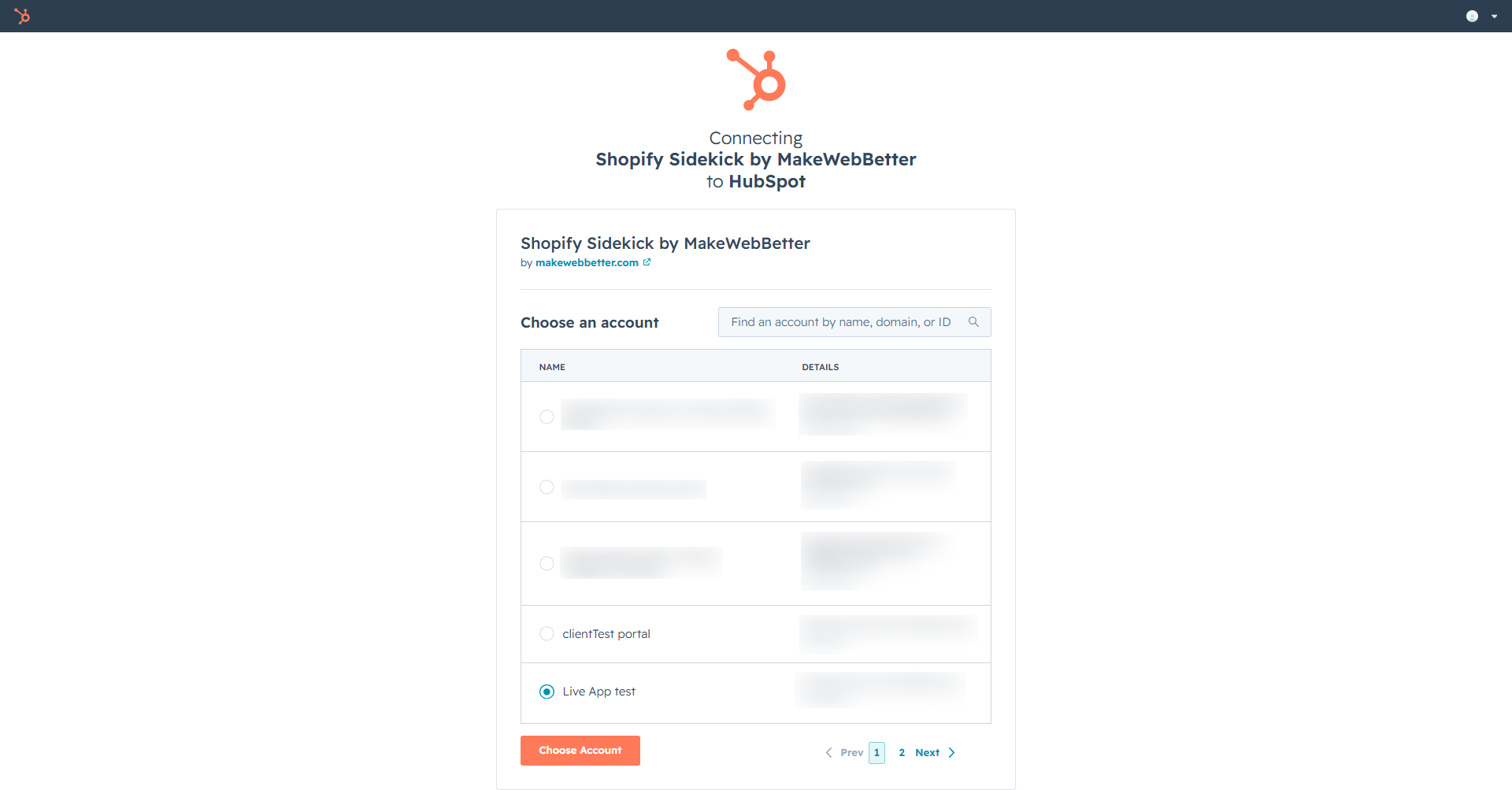
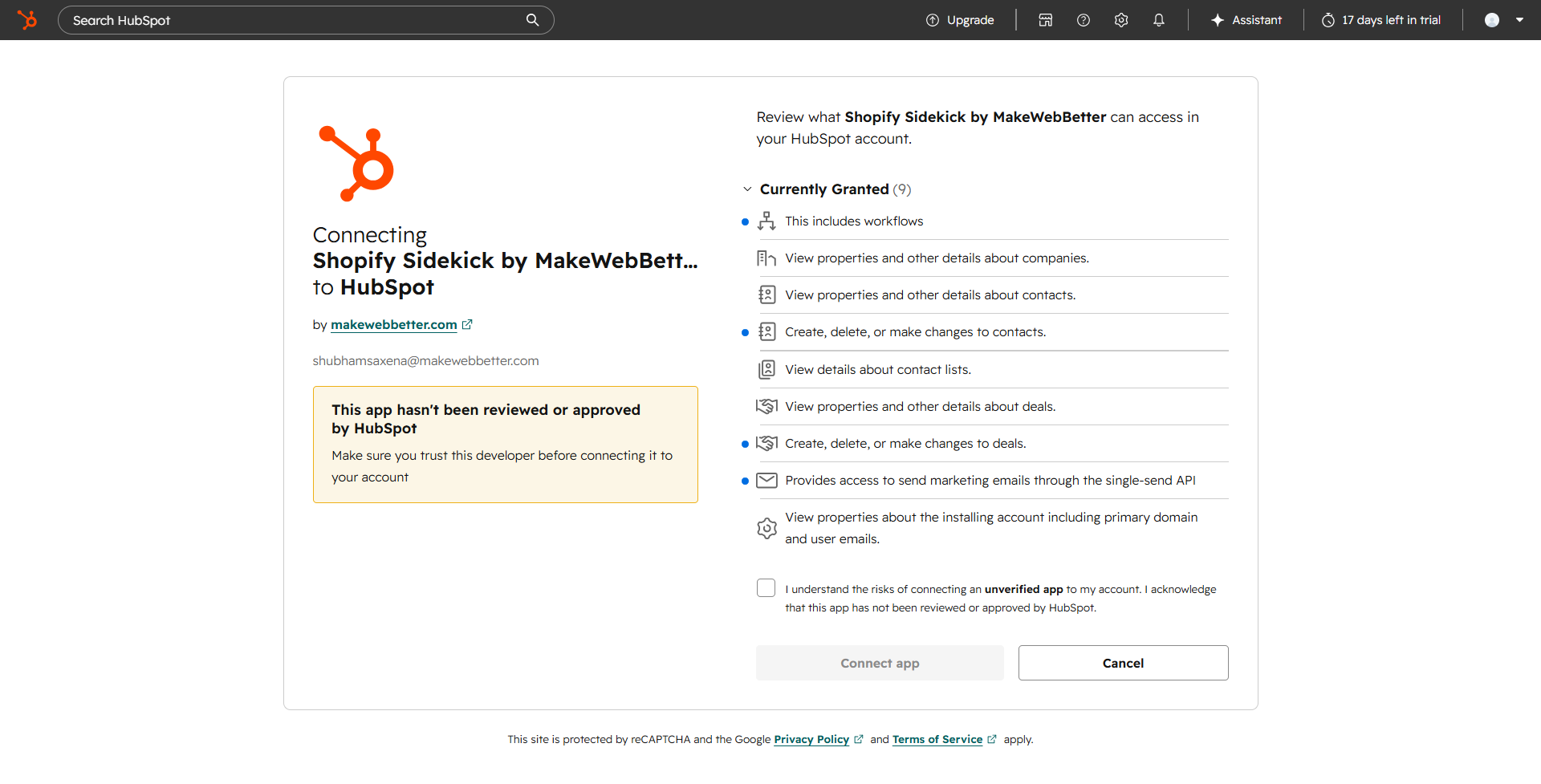
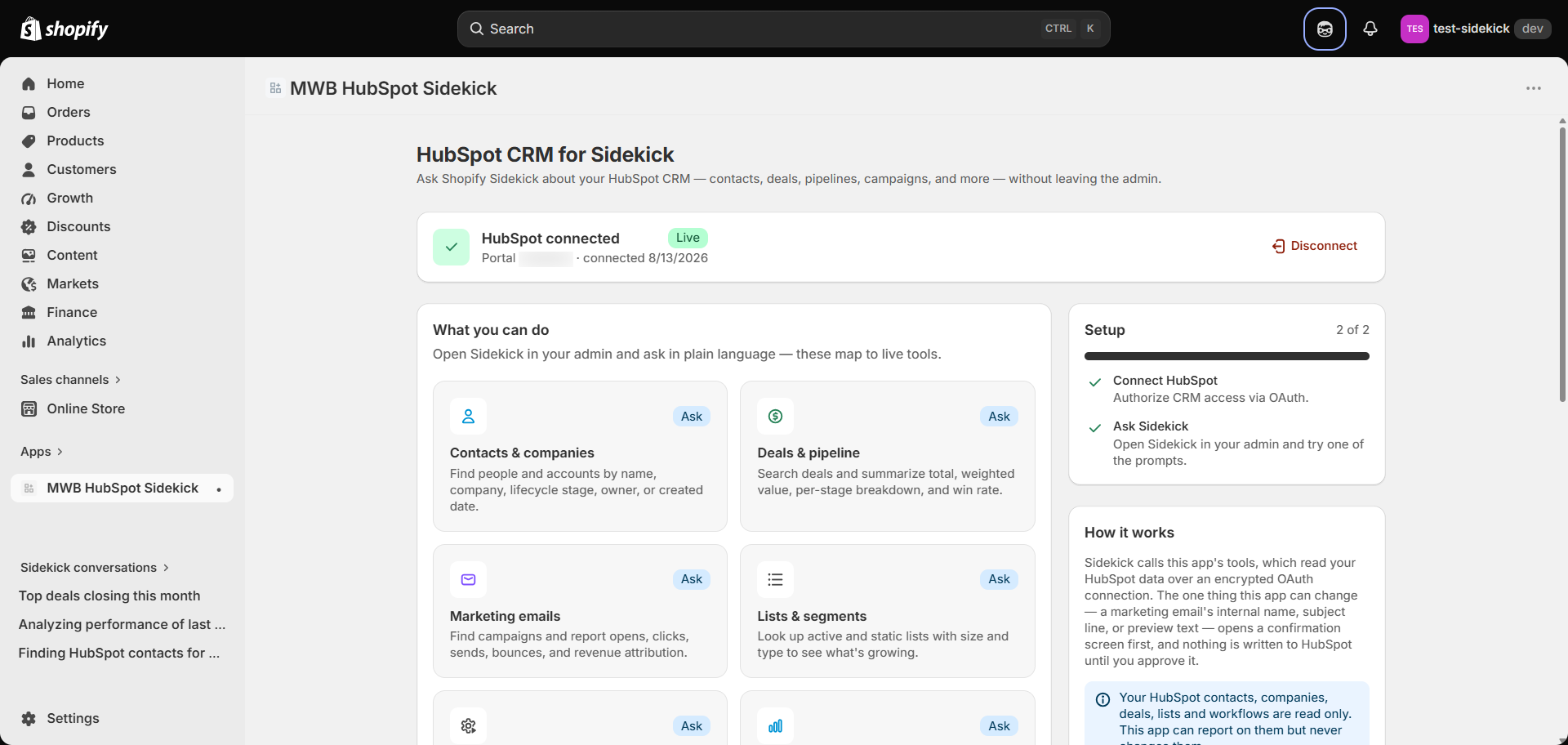
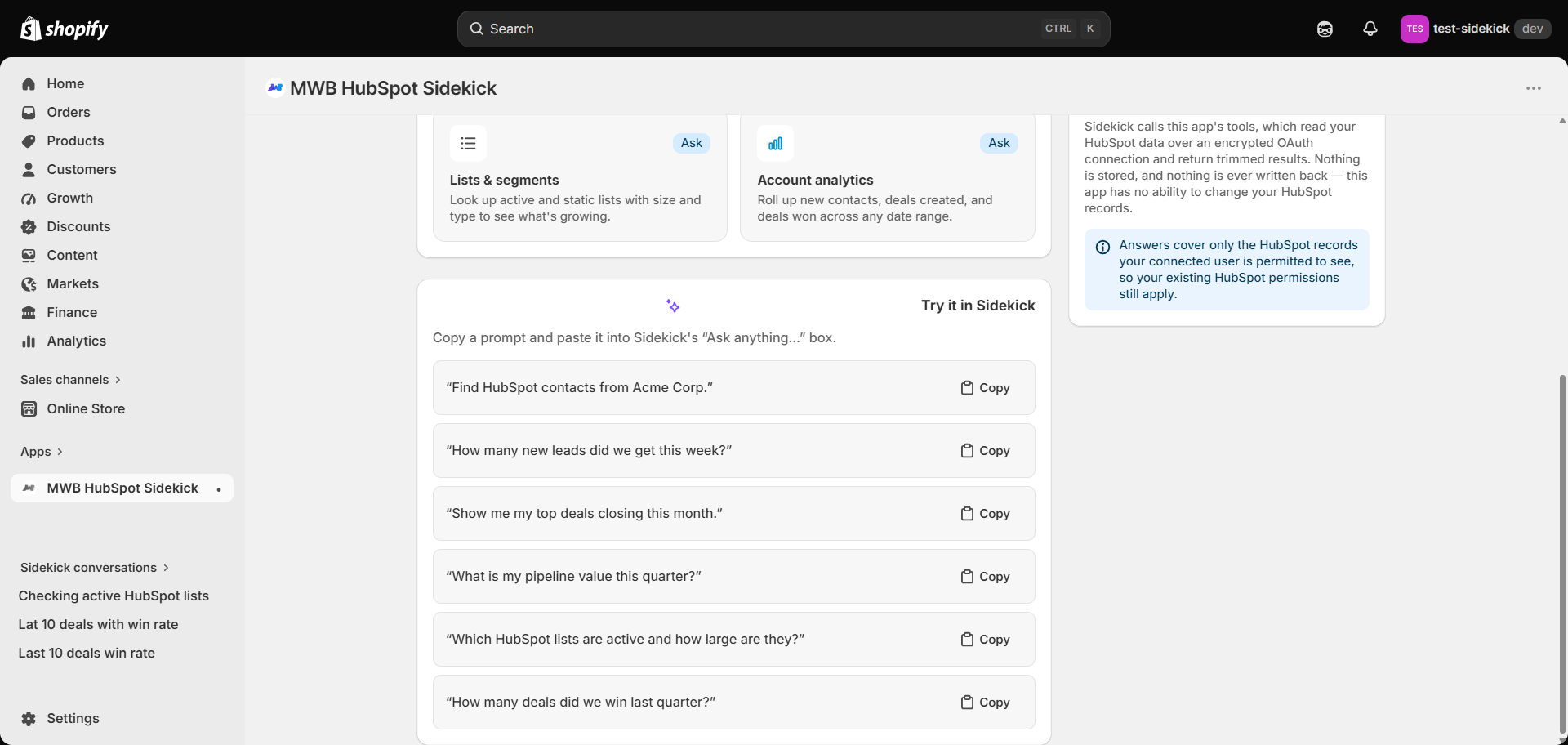
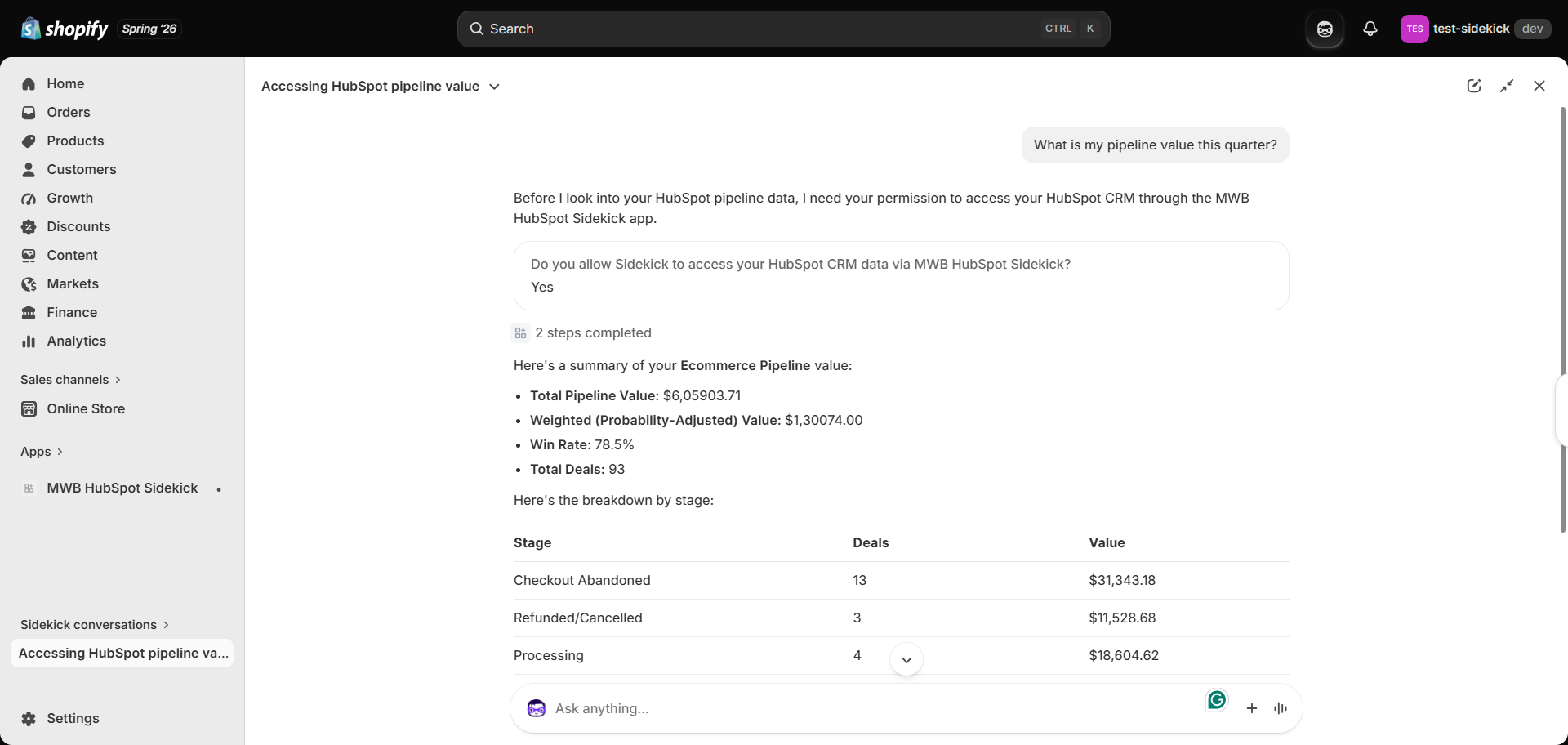
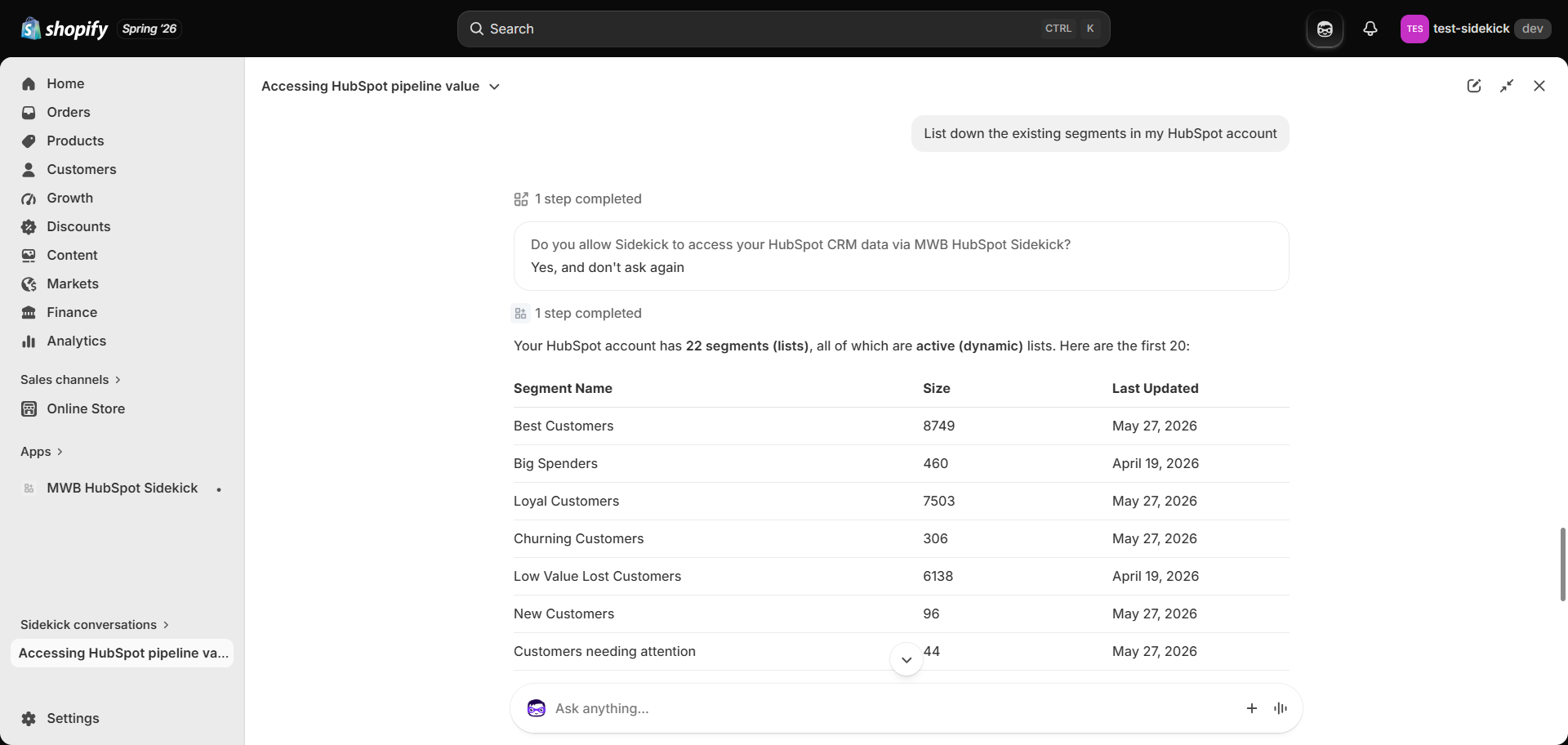
MWB HubSpot Sidekick connects your HubSpot CRM with Shopify Sidekick, allowing you to retrieve HubSpot CRM information directly from Shopify Admin using natural language. Once your HubSpot account is connected, Sidekick can answer CRM-related questions about contacts, companies, deals, marketing emails, workflows, lists, and analytics without requiring you to switch between Shopify and HubSpot. The app does not replace HubSpot or sync CRM data into Shopify. Instead, it enables Sidekick to securely access supported HubSpot CRM information whenever you ask a question. To authorize your HubSpot account: Note: The application uses HubSpot OAuth authentication. Your HubSpot password is never stored by the application. After successfully connecting HubSpot, the app dashboard displays your connection status, onboarding progress, supported CRM capabilities, and sample prompts. This dashboard serves as the central place to verify your connection and understand what Sidekick can access. The connection banner displays the current status of your HubSpot connection. It includes: Disconnect HubSpot To remove the connection: You can reconnect your HubSpot account at any time. The Setup card validates the initial configuration and onboarding. Connect HubSpot Complete the OAuth authorization process to establish a secure connection with your HubSpot portal. Ask Sidekick After connecting HubSpot, open Shopify Sidekick and ask one of the supported CRM questions to verify the integration. When both steps are completed, the setup process is complete. The dashboard includes a collection of sample prompts to help you get started. Each prompt includes a Copy button so you can quickly paste it into Shopify Sidekick. You can also create your own natural-language prompts based on the supported CRM capabilities. The image below shows Sidekick responding to a CRM query. This section highlights the HubSpot capabilities currently available through Shopify Sidekick. Each card represents a supported CRM capability that can be accessed by asking Sidekick a natural-language question. Search HubSpot contacts and companies using natural language. You can retrieve information such as: Example prompts Retrieve deal and pipeline information from HubSpot. Available insights include: Example prompts Review the performance of your HubSpot marketing emails. Retrieve metrics such as: Example prompts Access HubSpot lists directly from Sidekick. You can: Example prompts Check the status of HubSpot workflows. Available information includes: Example prompts Retrieve high-level CRM analytics. Examples include: Example prompts Does this app sync HubSpot data into Shopify? No. The app does not synchronize HubSpot CRM records with Shopify. It provides Shopify Sidekick with secure access to supported HubSpot information whenever you request it. Does the app store my HubSpot password? No. Authentication is handled through HubSpot OAuth. Your HubSpot credentials are never stored by the application. Can I disconnect HubSpot later? Yes. You can disconnect your HubSpot account at any time from the app dashboard. Can I connect multiple HubSpot portals? The app supports connecting a single HubSpot portal per Shopify store. If you need to switch portals, disconnect the current account and reconnect the desired portal.
1.Overview
2.Setup
Install the App in Shopify
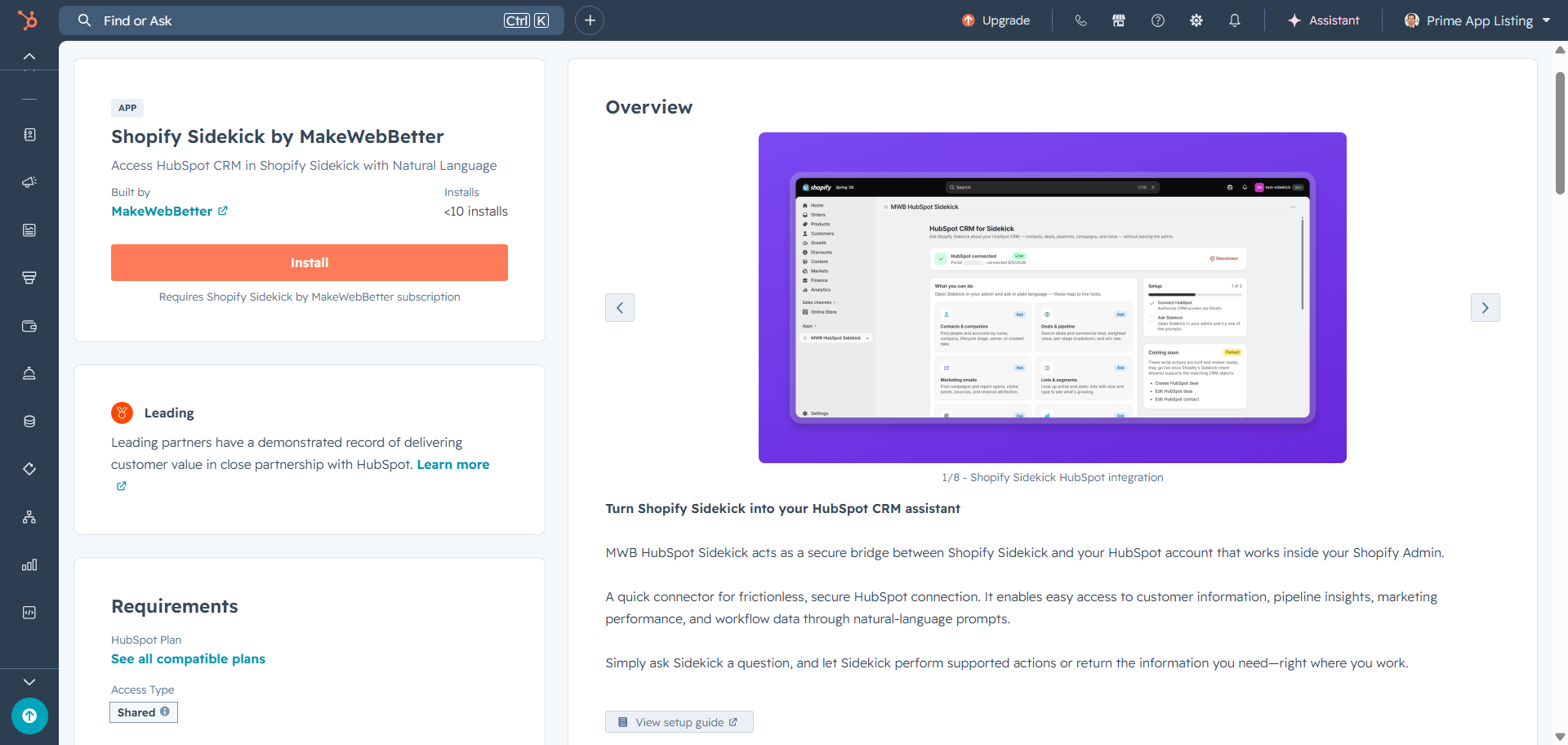
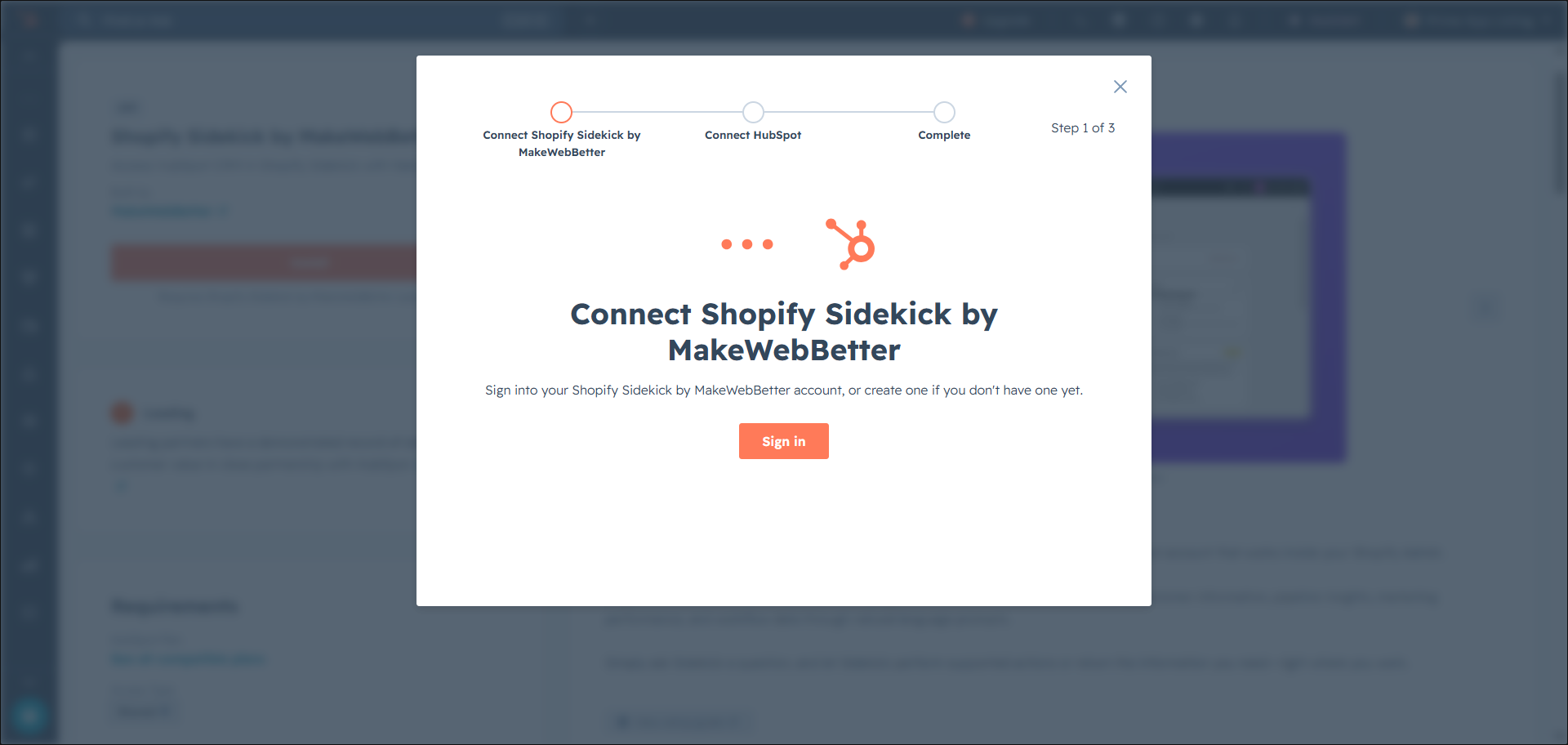
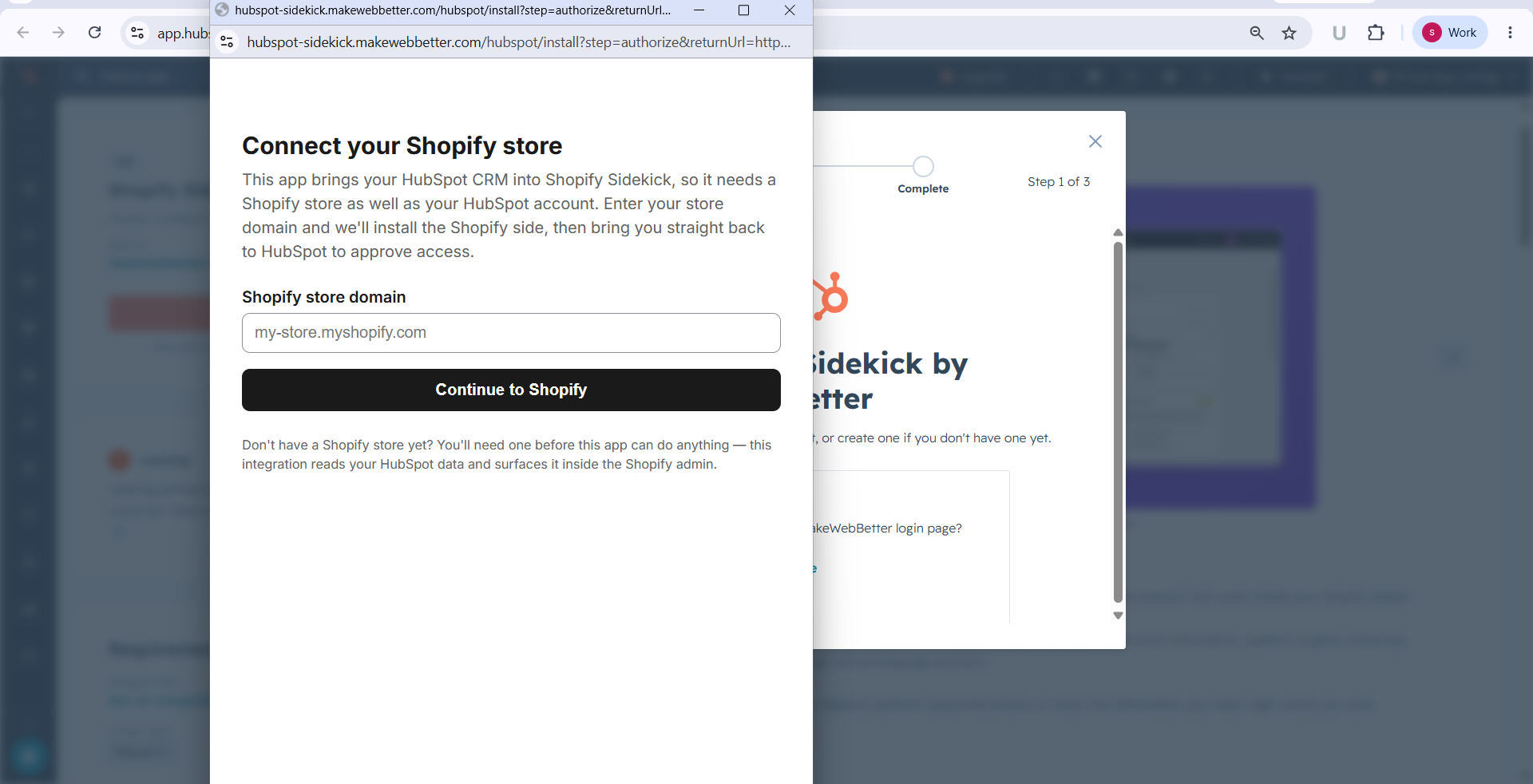
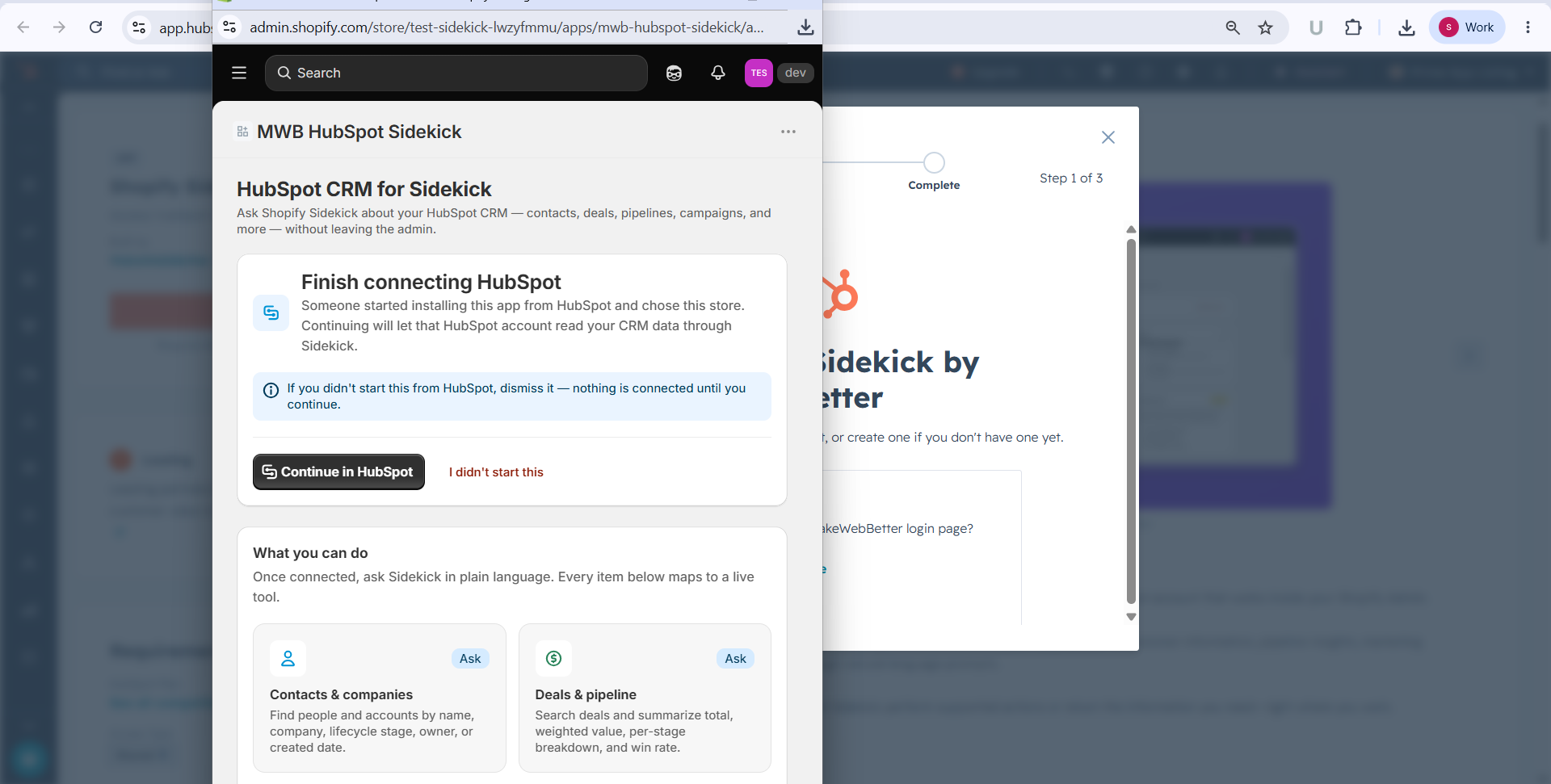
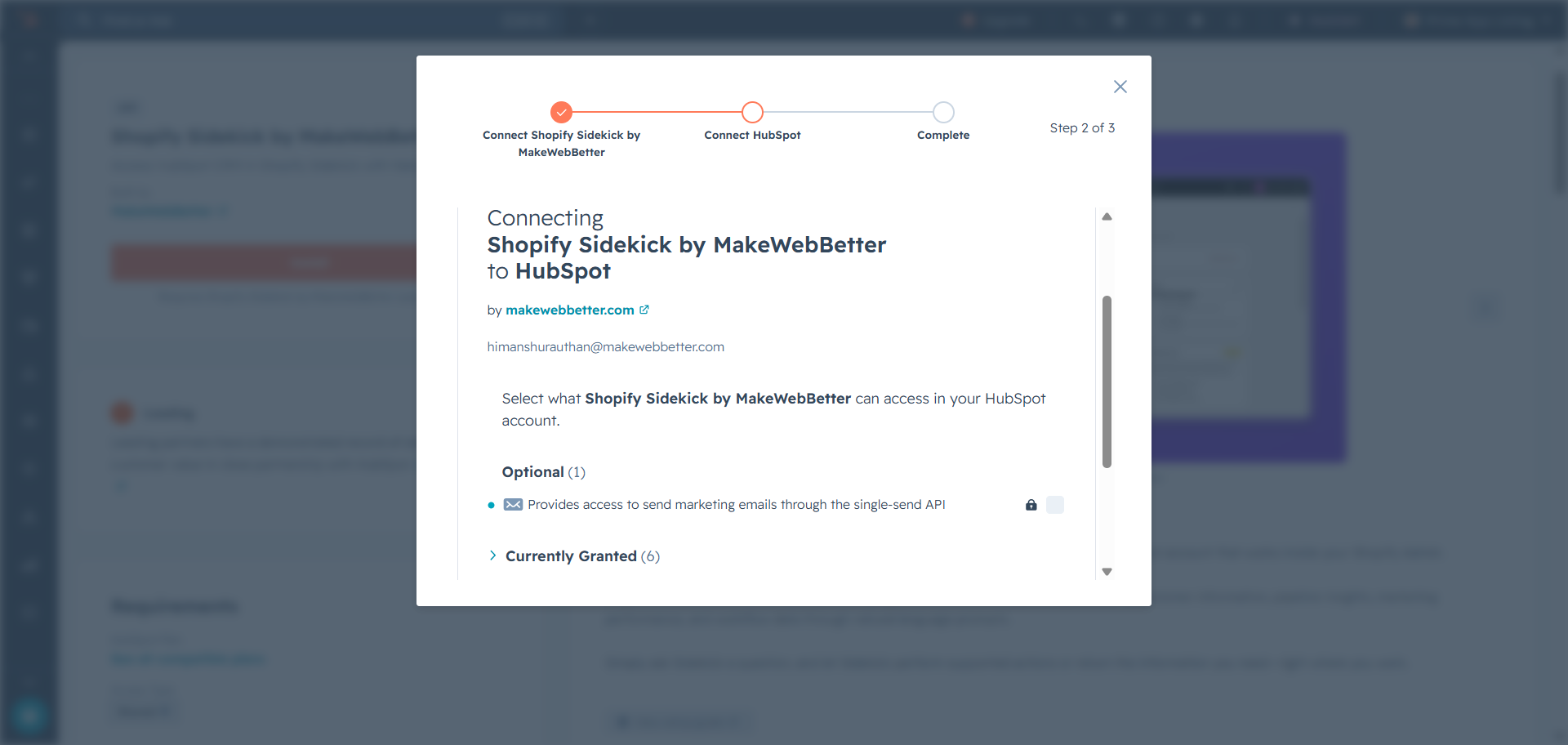
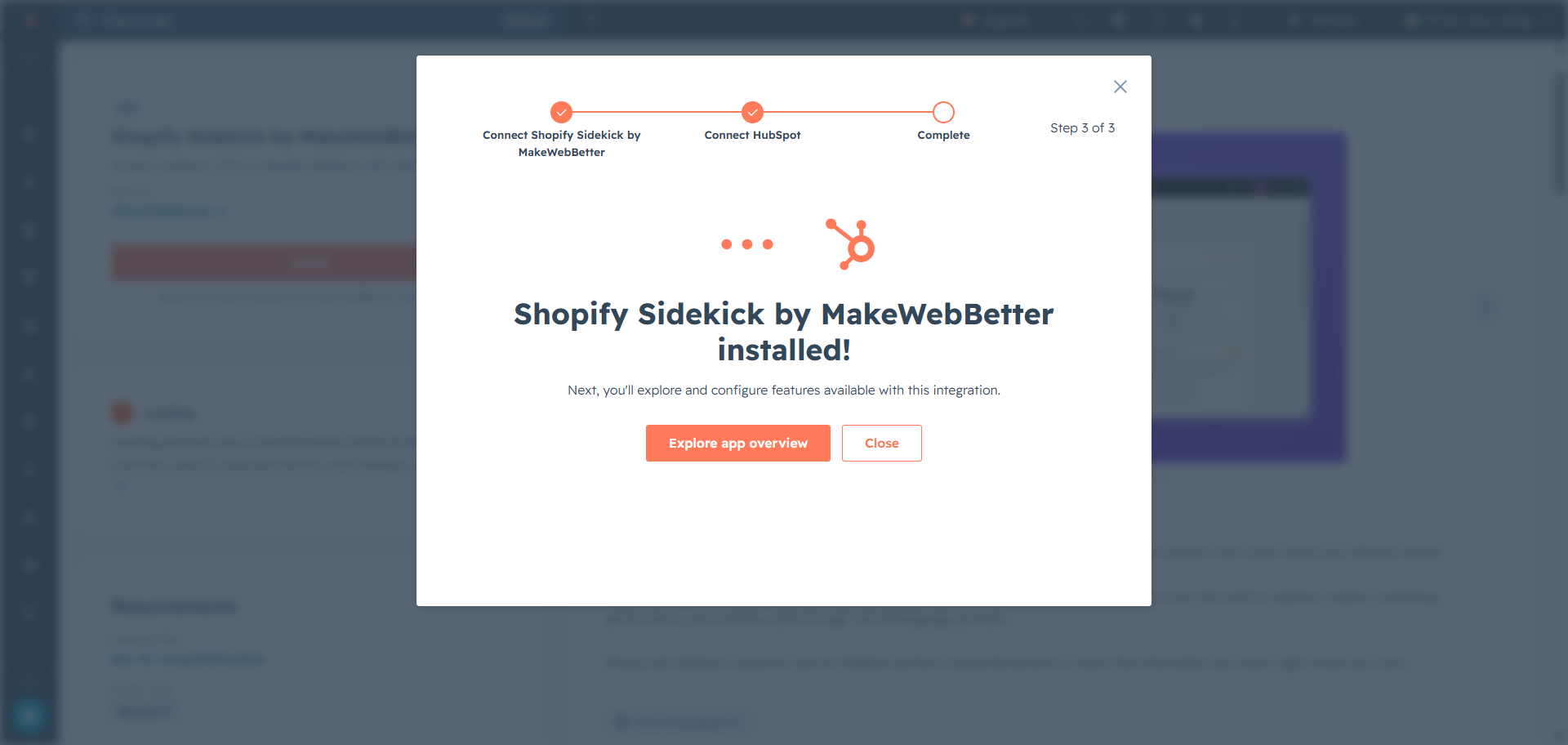
Connect HubSpot
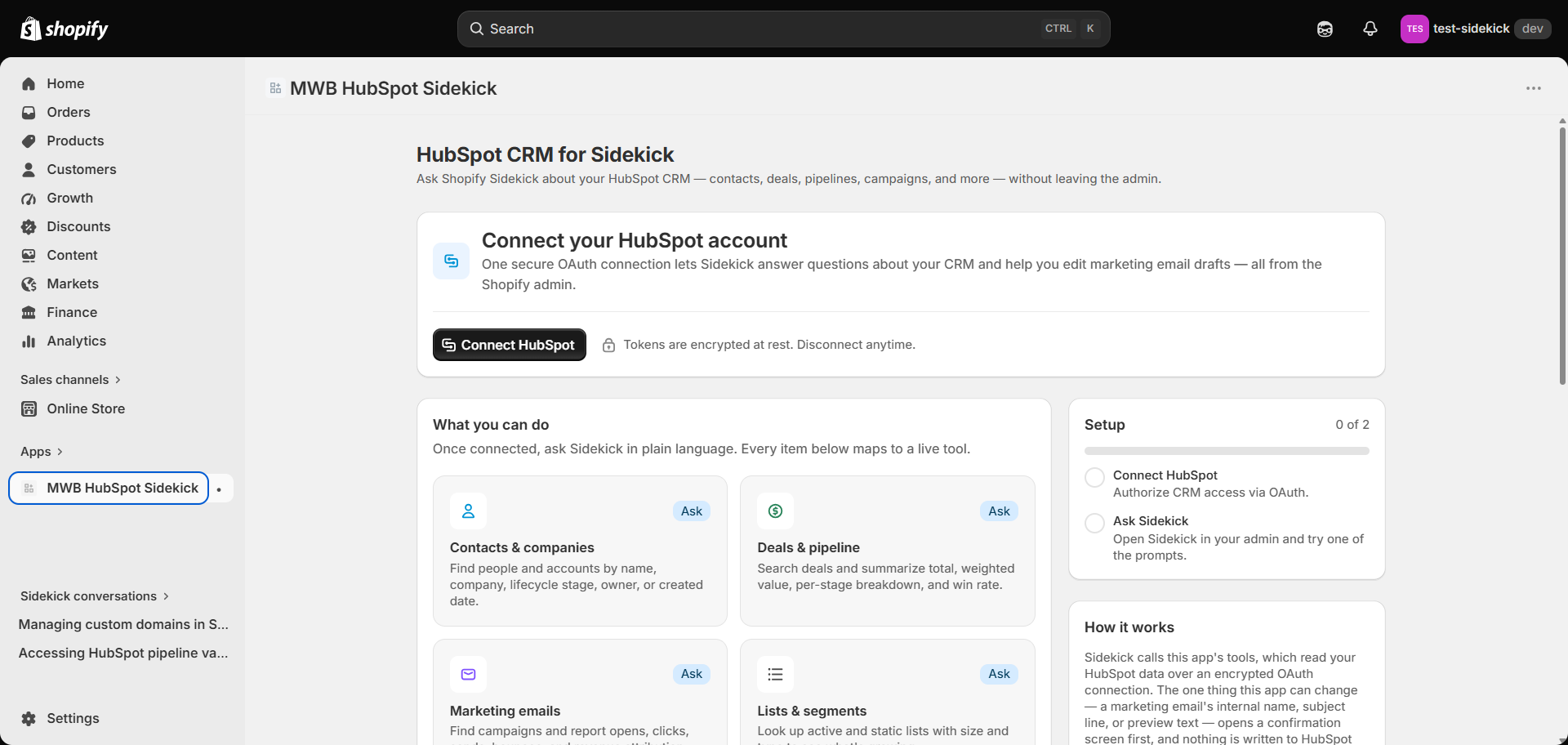
3.Dashboard
Connection Status

Setup Progress
4.What You Can Do
What You Can Do
Contacts & Companies
Deals & Pipeline
Marketing Emails
Lists & Segments
Workflows
Account Analytics
5.Frequently Asked Questions